The AI Coding Force Multiplier: Three Patterns That Compound
TL;DR
Three patterns that compound into an engineering force multiplier: workflow prompts (consistency), single-file scripts (power), and directory watchers (scale). Alone, each saves hours. Together, they multiply—consistent workflows call powerful scripts, automated at scale. This guide shows how to build the trinity and why 1 + 1 + 1 = 10, not 3.
The difference between engineers who get 10x productivity from AI and engineers who give up after a month isn’t enthusiasm or budget. It’s architecture.
Most engineers add tools. High-performing engineers build multipliers.
A tool helps you do one thing. A multiplier helps everything you do. The three patterns in this guide—workflow prompts, single-file scripts, and directory watchers—aren’t just useful individually. They compound:
- Workflow prompts give you consistency (the same task, the same way, every time)
- Single-file scripts give you power (complex operations without infrastructure)
- Directory watchers give you scale (automation that runs while you sleep)
Alone, each saves hours. Together, they multiply: 1 + 1 + 1 = 10, not 3.
Here’s how that works.
Part 1: The Consistency Multiplier
Here’s the math that kills most AI adoption efforts:
5 engineers × 5 different prompts × 5 slightly different outputs = chaos
The same task produces different results every time. Knowledge doesn’t transfer. Every engineer reinvents the wheel.
Workflow prompts solve this. One prompt. One execution pattern. Same results. Every time.
The workflow section—your step-by-step instructions for what the agent should do—drives 90% of the value you’ll capture from AI-assisted engineering. Not because it’s complicated (it’s not), but because it eliminates variance.
A consistent workflow can be measured. A consistent workflow can be improved. A consistent workflow can be automated (see Part 3). Consistency is the foundation everything else builds on.
Here’s the pattern:
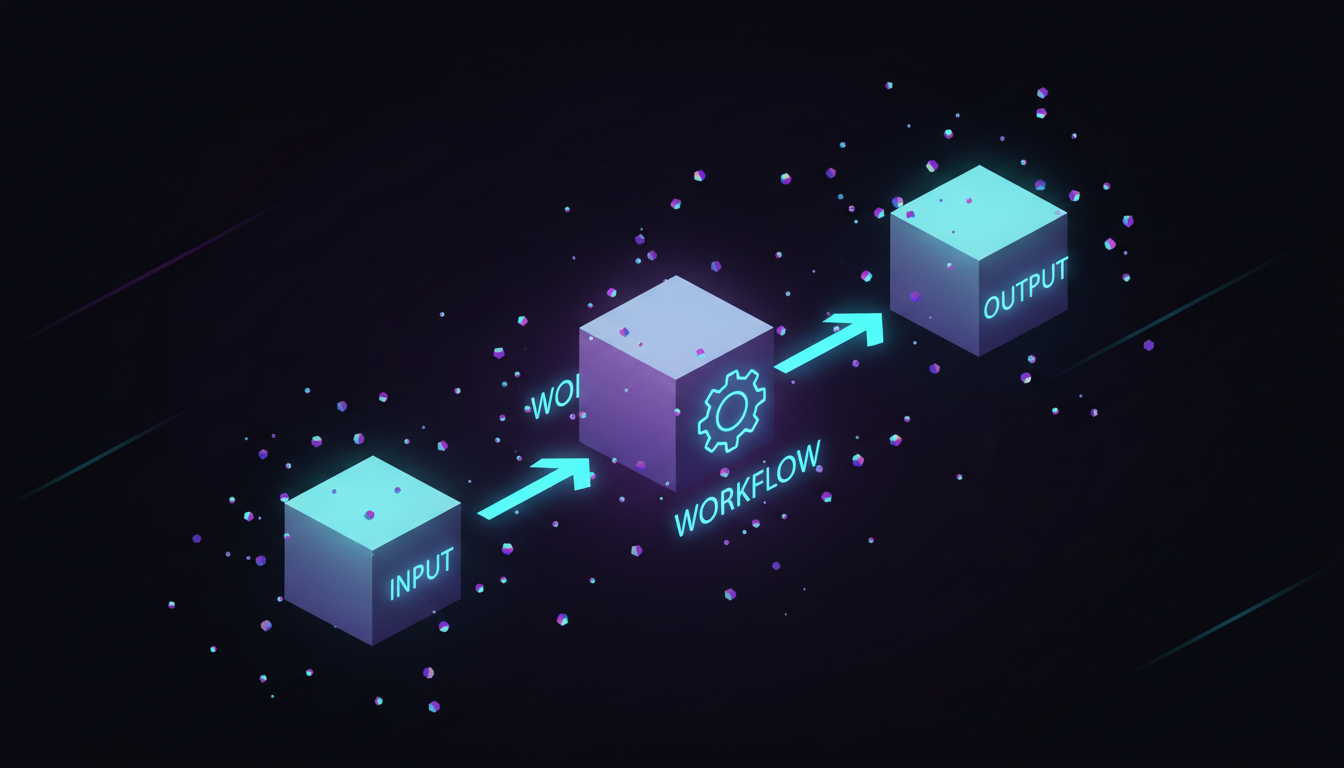
The Core Pattern: Input - Workflow - Output
Every effective agentic prompt follows this three-step structure:
flowchart LR
    subgraph INPUT["INPUT"]
        I1[Variables]
        I2[Parameters]
        I3[Context]
    end

    subgraph WORKFLOW["WORKFLOW"]
        W1[Sequential]
        W2[Step-by-Step]
        W3[Instructions]
    end

    subgraph OUTPUT["OUTPUT"]
        O1[Report]
        O2[Format]
        O3[Structure]
    end

    INPUT --> WORKFLOW --> OUTPUT

    style INPUT fill:#e3f2fd
    style WORKFLOW fill:#fff3e0
    style OUTPUT fill:#c8e6c9
The workflow section is where your agent’s actual work happens. It’s rated S-tier usefulness with C-tier difficulty - the most valuable component is also the easiest to execute well.
A Complete Workflow Prompt
Here’s a production-ready workflow prompt you can use as a Claude Code command:
<!-- github: https://github.com/ameno-/acidbath-code/blob/main/workflow-tools/workflow-prompts/poc-working-workflow/poc-working-workflow.md -->---description: Analyze a file and create implementation planallowed-tools: Read, Glob, Grep, Writeargument-hint: <file_path>---
# File Analysis and Planning Agent
## PurposeAnalyze the provided file and create a detailed implementation plan for improvements.
## Variables- **target_file**: $ARGUMENTS (the file to analyze)- **output_dir**: ./specs
44 collapsed lines
## Workflow
1. **Read the target file** - Load the complete contents of {{target_file}} - Note the file type, structure, and purpose
2. **Analyze the codebase context** - Use Glob to find related files (same directory, similar names) - Use Grep to find references to functions/classes in this file - Identify dependencies and dependents
3. **Identify improvement opportunities** - List potential refactoring targets - Note any code smells or anti-patterns - Consider performance optimizations - Check for missing error handling
4. **Create implementation plan** - For each improvement, specify: - What to change - Why it matters - Files affected - Risk level (low/medium/high)
5. **Write the plan to file** - Save to {{output_dir}}/{{filename}}-plan.md - Include timestamp and file hash for tracking
## Output Formatfile_analyzed: {{target_file}}timestamp: {{current_time}}improvements: - id: 1 type: refactor|performance|error-handling|cleanup description: "What to change" rationale: "Why it matters" files_affected: [list] risk: low|medium|high effort: small|medium|large
## Early Returns- If {{target_file}} doesn't exist, stop and report error- If file is binary or unreadable, stop and explain- If no improvements found, report "file looks good" with reasoningSave this as .claude/commands/analyze.md and run with /analyze src/main.py.
What Makes Workflows Powerful
Sequential clarity - Numbered steps eliminate ambiguity. The agent knows exactly what order to execute.
## Workflow
1. Read the config file2. Parse the JSON structure3. Validate required fields exist4. Transform data to new format5. Write output file
Nested detail - Add specifics under each step without breaking the sequence:
## Workflow
1. **Gather requirements**   - Read the user's request carefully   - Identify explicit requirements   - Note implicit assumptions   - List questions if anything is unclear
2. **Research existing code**   - Search for similar implementations   - Check for utility functions that could help   - Review relevant documentation
Conditional branches - Handle different scenarios:
## Workflow
1. Check if package.json exists2. **If exists:**   - Parse dependencies   - Check for outdated packages   - Generate update recommendations3. **If not exists:**   - Stop and inform user this isn't a Node project
When Workflow Prompts Fail
Workflow prompts are powerful, but they’re not universal. Here are the failure modes:
Overly complex tasks requiring human judgment mid-execution
Database migration planning fails as a workflow. The prompt can analyze schema differences and generate SQL, but it can’t decide which migrations are safe to auto-apply versus which need DBA review. The decision tree has too many branches.
If your workflow has more than 2 “stop and ask the user” points, it’s not a good fit. You’re better off doing it interactively.
Ambiguous requirements that can’t be specified upfront
“Generate a blog post outline” sounds like a good workflow candidate. It’s not. The requirements shift based on the output. Interactive prompting lets you course-correct in real-time. Workflow prompts lock in your assumptions upfront.
Tasks requiring real-time adaptation
Debugging sessions are the classic example. You can’t write a workflow for “figure out why the auth service is returning 500 errors” because each finding changes what you need to check next.
Edge cases with hidden complexity
“Rename this function across the codebase” sounds trivial. Except the function is called get() and your codebase has 47 different get() functions. For tasks with hidden complexity, start with interactive prompting. Once you’ve hit the edge cases manually, codify the workflow.
Measuring Workflow ROI
The question you should ask before writing any workflow prompt: “Will this pay for itself?”
(Time to write prompt) / (Time saved per use) = minimum uses needed. A 60-minute workflow that saves 15 minutes per use pays off after 4 uses.
Example 1: Code review workflow
- Time to write: 60 minutes
- Manual review time: 20 minutes
- Time with workflow: 5 minutes (you review the agent’s output)
- Time saved per use: 15 minutes
- Break-even: 60 / 15 = 4 uses
If you review code 4+ times, the workflow prompt pays off.
Example 2: API endpoint scaffolding
- Time to write: 90 minutes (includes error handling, validation, tests)
- Manual scaffold time: 40 minutes
- Time with workflow: 8 minutes (review and tweak)
- Time saved per use: 32 minutes
- Break-even: 90 / 32 = 2.8 uses (round to 3)
If you build 3+ similar endpoints, the workflow prompt pays off.
The Multiplier Effect
This calculation assumes only you use the workflow. If your team uses it, divide break-even by team size.
A 30-minute workflow prompt on a 5-person team needs to save each person just 6 minutes once to break even. That’s a no-brainer for common tasks like “add API endpoint,” “generate test file,” or “create component boilerplate.”
The hidden cost: maintenance
Workflow prompts break when your codebase evolves. Budget 15-30 minutes per quarter per active workflow for maintenance. If a workflow saves you 2 hours per month but costs 30 minutes per quarter to maintain, the net ROI is still massive: 24 hours saved vs 2 hours maintenance over a year.
Why Workflows Beat Ad-Hoc Prompting
flowchart LR
    subgraph ADHOC["AD-HOC PROMPTING"]
        A1["'Help me refactor this'"]
        A2[Unpredictable scope]
        A3[Inconsistent output]
        A4[No error handling]
        A5[Can't reuse]
        A6[Team can't use it]
    end

    subgraph WORKFLOW["WORKFLOW PROMPTING"]
        W1["Step 1: Backup"]
        W2["Step 2: Analyze"]
        W3["Step 3: Plan"]
        W4["Step 4: Execute"]
        W5["Step 5: Verify"]
        W6["Step 6: Document"]
    end

    WORKFLOW --> R1[Predictable execution]
    WORKFLOW --> R2[Consistent format]
    WORKFLOW --> R3[Early returns on error]
    WORKFLOW --> R4[Reusable forever]
    WORKFLOW --> R5[Team multiplier]

    style ADHOC fill:#ffcdd2
    style WORKFLOW fill:#c8e6c9
The workflow prompt transforms a vague request into an executable engineering plan. One workflow prompt executing for an hour can generate work that would take you 20 hours.
Build a Prompt Library
flowchart TD
    subgraph LIB[".claude/commands/"]
        A["analyze.md - File analysis"]
        B["refactor.md - Guided refactoring"]
        C["test.md - Generate tests"]
        D["document.md - Add documentation"]
        E["review.md - Code review checklist"]
        F["debug.md - Systematic debugging"]
    end

    LIB --> G["Each prompt follows: Input → Workflow → Output"]
    G --> H["Reusable across projects"]
    H --> I["Serves you, your team, AND your agents"]

    style LIB fill:#e8f5e9
Start with your most common task. The one you do every day. Write out the steps you take manually. Convert each step to a numbered instruction. Add variables for the parts that change. Add early returns for failure cases. Specify the output format. Test it. Iterate. Add to your library.
Part 2: The Power Multiplier
Consistency (Part 1) tells agents WHAT to do. Power determines HOW MUCH they can do.
MCP servers promise power but deliver complexity. For every 10 lines of functionality, you’re writing 50 lines of configuration, process management, and error handling. That’s a 5:1 overhead ratio.
Single-file scripts flip this ratio. One file. Zero config. Full functionality.
Powerful scripts can BE workflow prompts. Workflow prompts can CALL scripts. When Part 1 and Part 2 connect, you get consistent execution of powerful operations.
No daemon processes to babysit. No YAML to misconfigure. Just bun dolph.ts --task list-tables or import it as a library. Here’s why single-file scripts multiply your capabilities:
The Problem with MCP Servers
Model Context Protocol servers are powerful. They’re also a 45-minute detour when all you needed was a database query.
Here’s what “simple MCP tool” actually costs you:
- Process management - Your server crashes at 2 AM. Your tool stops working. Nobody notices until the demo.
- Configuration files -
mcp.json, server settings, transport config. Three files to misconfigure, zero helpful error messages. - Type separation - Tool definitions in one file, types in another, validation logic in a third. Good luck keeping them in sync.
- Distribution - “Just install the MCP server, configure Claude Desktop, add the correct permissions, restart, and…” - you’ve lost them.
For simple database queries or file operations, this is like renting a crane to hang a picture frame.
When Single-File Scripts Win
Single-file scripts consistently outperform MCP servers when you need:
- Zero server management - Run directly, no background processes to monitor or restart
- Dual-mode execution - Same file works as CLI tool AND library import (this alone saves 40% of integration code)
- Portable distribution - One file (or one file + package.json for dependencies). Share via Slack. Done.
- Fast iteration - Change code, run immediately, no restart. Feedback loops under 2 seconds.
- Standalone binaries (Bun only) - Compile to self-contained executable. Ship to users who’ve never heard of Bun.
Case Study: Dolph Architecture
Dual-Mode Execution in One File
// github: https://github.com/ameno-/acidbath-code/blob/main/workflow-tools/single-file-scripts/complete-working-example/complete-working-example.ts#!/usr/bin/env bun/** * CLI Usage: *   bun dolph.ts --task test-connection *   bun dolph.ts --chat "What tables are in this database?" * * Server Usage: *   import { executeMySQLTask, runMySQLAgent } from "./dolph.ts"; *   const result = await runMySQLAgent("Show me all users created today"); */
// ... 1000+ lines of implementation ...
// Entry point detectionconst isMainModule = import.meta.main;
if (isMainModule) { runCLI().catch(async (error) => { console.error("Fatal error:", error); await closeConnection(); process.exit(1); });}Pattern: Use import.meta.main (Bun/Node) or if __name__ == "__main__" (Python) to detect execution mode. Export functions for library use, run CLI logic when executed directly.
Same file works as CLI tool AND library import. Use import.meta.main (Bun) or if __name__ == "__main__" (Python) to detect execution mode. This saves 40% of integration code.
Dual-Gate Security Pattern
const WRITE_PATTERNS = /^(INSERT|UPDATE|DELETE|DROP|CREATE|ALTER|TRUNCATE|REPLACE)/i;
async function runQueryImpl(sql: string, allowWrite = false): Promise<QueryResult> {  const config = getConfig();
17 collapsed lines  if (isWriteQuery(sql)) {    // Gate 1: Caller must explicitly allow writes    if (!allowWrite) {      throw new Error("Write operations require allowWrite=true parameter");    }    // Gate 2: Environment must enable writes globally    if (!config.allowWrite) {      throw new Error("Write operations disabled by configuration. Set MYSQL_ALLOW_WRITE=true");    }  }
  // Auto-limit SELECT queries  const finalSql = enforceLimit(sql, config.rowLimit);  const [result] = await db.execute(finalSql);
return { rows: result, row_count: result.length, duration_ms };}Pattern: Layer multiple security checks. Require BOTH function parameter AND environment variable for destructive operations. Auto-enforce limits on read operations.
Bun vs UV: Complete Comparison
| Feature | Bun (TypeScript) | UV (Python) |
|---|---|---|
| Dependency declaration | package.json adjacent | # /// script block in file |
| Example inline deps | Not inline (uses package.json) | # dependencies = ["requests<3"] |
| Run command | bun script.ts | uv run script.py |
| Shebang | #!/usr/bin/env bun | #!/usr/bin/env -S uv run --script |
| Lock file | bun.lock (adjacent) | script.py.lock (adjacent) |
| Compile to binary | bun build --compile | N/A |
| Native TypeScript | Yes, zero config | N/A (Python) |
| Built-in APIs | File, HTTP, SQL native | Standard library only |
| Watch mode | bun --watch script.ts | Not built-in |
| Environment loading | .env auto-loaded | Manual via python-dotenv |
| Startup time | ~50ms | ~100-200ms (depends on imports) |
Complete Working Example: Database Agent
Here’s a minimal but complete single-file database agent pattern:
#!/usr/bin/env bun/** * Usage: *   bun db-agent.ts --query "SELECT * FROM users" *   import { query } from "./db-agent.ts" */
import mysql from "mysql2/promise";import { parseArgs } from "util";
type Connection = mysql.Connection;let _db: Connection | null = null;
async function getConnection(): Promise<Connection> {  if (!_db) {    _db = await mysql.createConnection({      host: Bun.env.MYSQL_HOST || "localhost",      user: Bun.env.MYSQL_USER || "root",      password: Bun.env.MYSQL_PASS || "",      database: Bun.env.MYSQL_DB || "mysql",    });  }  return _db;}
export async function query(sql: string): Promise<any[]> {  const db = await getConnection();  const [rows] = await db.execute(sql);  return Array.isArray(rows) ? rows : [];}
export async function close(): Promise<void> {  if (_db) {    await _db.end();    _db = null;  }}
// CLI modeif (import.meta.main) {  const { values } = parseArgs({    args: Bun.argv.slice(2),    options: {      query: { type: "string", short: "q" },    },  });
  if (!values.query) {    console.error("Usage: bun db-agent.ts --query 'SELECT ...'");    process.exit(1);  }
  try {    const results = await query(values.query);    console.log(JSON.stringify(results, null, 2));  } finally {    await close();  }}
Save as db-agent.ts with this package.json:
{ "dependencies": { "mysql2": "^3.6.5" }}Run it:
bun installbun db-agent.ts --query "SELECT VERSION()"Or import it:
import { query, close } from "./db-agent.ts";
const users = await query("SELECT * FROM users LIMIT 5");console.log(users);await close();
Compiling Bun Scripts to Binaries
Bun’s killer feature: compile your script to a standalone executable with zero dependencies.
# Basic compilationbun build --compile ./dolph.ts --outfile dolph
# Optimized for production (2-4x faster startup)bun build --compile --bytecode --minify ./dolph.ts --outfile dolph
# Run the binary (no Bun installation needed)./dolph --task list-tables
The binary includes your TypeScript code (transpiled), all npm dependencies, the Bun runtime, and native modules. Ship it to users who don’t have Bun installed. It just works.
UV Inline Dependencies
UV’s killer feature: dependencies declared inside the script itself.
#!/usr/bin/env -S uv run --script# /// script# dependencies = [#   "openai>=1.0.0",#   "mysql-connector-python",#   "click>=8.0",# ]# ///
import openaiimport mysql.connectorimport click
No hunting for requirements.txt. No wondering which version. The context is inline. Self-documenting code.
What Doesn’t Work
Single-file scripts have limits. Here’s when you’ve outgrown the pattern:
- Multi-language ecosystems - Python + Node.js + Rust in one tool? You need a server to coordinate them.
- Complex service orchestration - Multiple databases, message queues, webhooks talking to each other? Server territory.
- Streaming responses - MCP’s streaming protocol handles real-time updates better than polling ever will.
- Shared state across tools - If tools need to remember what other tools did, a server maintains that context.
- Hot reloading in production - Servers can swap code without restarting. Scripts restart from scratch.
The graduation test: When you catch yourself adding a config file to manage your “simple” script, it’s time for a server.
But most tools never reach this point. Start simple. Graduate when you must - not before.
Dolph Stats: The Numbers That Matter
| Metric | Value | What It Means |
|---|---|---|
| Lines of code | 1,015 | Entire agent fits in one readable file |
| Dependencies | 3 | openai agents SDK, mysql2, zod - nothing else |
| Compile time | 2.3s | Build to standalone binary faster than npm install |
| Binary size | 89MB | Includes Bun runtime + all deps. Self-contained. |
| Startup time | 52ms | Cold start to first query, compiled with —bytecode |
| Tools exposed | 5 | test-connection, list-tables, get-schema, get-all-schemas, run-query |
| Modes | 3 | CLI task, CLI chat, library import - same file |
| Security gates | 2 | Dual-gate protection: parameter AND environment variable for writes |
1,015 lines. Full MySQL agent. No server process. No configuration nightmare.
Part 3: The Scale Multiplier
Consistency (Part 1) + Power (Part 2) = great productivity.
But you’re still the bottleneck. You still have to type the command. You still have to be present. Your force multiplier tops out at maybe 5x—impressive, but limited.
Directory watchers remove the bottleneck.
Drag a file into a folder. Your workflow prompt (Part 1) executes automatically, calling your scripts (Part 2) as needed. Results appear. No chat. No prompting. No human-in-the-loop.
The best interface is no interface. Drop zones have zero learning curve because you’re already dragging files into folders.
This is where the force multiplier compounds. Consistent workflows (Part 1) executing powerful scripts (Part 2) at scale (Part 3). Tasks run while you sleep.
The Architecture
flowchart TB
    subgraph DROPS["~/drops/"]
        D1["transcribe/"] --> W1["Whisper -> text"]
        D2["analyze/"] --> W2["Claude -> summary"]
        D3["images/"] --> W3["Replicate -> generations"]
        D4["data/"] --> W4["Claude -> analysis"]
    end

    subgraph WATCHER["DIRECTORY WATCHER"]
        E1[watchdog events] --> E2[Pattern Match] --> E3[Agent Execute]
    end

    DROPS --> WATCHER

    subgraph OUTPUT["OUTPUTS"]
        O1["~/output/{zone}/{timestamp}-{filename}.{result}"]
        O2["~/archive/{zone}/{timestamp}-{filename}.{original}"]
    end

    WATCHER --> OUTPUT

    style DROPS fill:#e3f2fd
    style WATCHER fill:#fff3e0
    style OUTPUT fill:#c8e6c9
Configuration File
Each zone maps a directory + file patterns to an agent:
# drops.yaml - define your automation zoneszones:  transcribe:    directory: ~/drops/transcribe    patterns: ["*.mp3", "*.wav", "*.m4a"]    agent: whisper_transcribe
  analyze:    directory: ~/drops/analyze    patterns: ["*.txt", "*.md", "*.pdf"]    agent: claude_analyze
agents:  whisper_transcribe:    type: bash    command: whisper "{file}" --output_dir "{output_dir}"
  claude_analyze:    type: claude    prompt_file: prompts/analyze.md
Full configuration with all agent types: Directory Watchers deep dive.
The Core Watcher
The core loop is simple: detect file → match pattern → execute agent → archive original.
# Full implementation: /blog/directory-watchersclass DropZoneHandler(FileSystemEventHandler):    def on_created(self, event):        if self._matches_pattern(event.src_path):            self._run_agent(event.src_path)            self._archive_file(event.src_path)
    def _run_agent(self, filepath: str) -> str:        agent_type = self.agent_config.get("type")        if agent_type == "claude":            return self._run_claude_agent(filepath)        elif agent_type == "bash":            return self._run_bash_agent(filepath)        # ... handle other agent types
The full implementation handles edge cases: race conditions (wait for file stability), error recovery (dead letter queue), and agent failures (transactional processing with rollback).
Data Flow: File Drop to Result
flowchart LR
    subgraph Input
        A[User drops file.txt]
    end

    subgraph Watcher
        B[Watchdog detects create event]
        C[Pattern matches *.txt]
        D[Agent selected: claude_analyze]
    end

    subgraph Agent
        E[Load prompt template]
        F[Read file content]
        G[Call Claude API]
        H[Write result.md]
    end

    subgraph Cleanup
        I[Archive original]
        J[Log completion]
    end

    A --> B --> C --> D --> E --> F --> G --> H --> I --> J

    style A fill:#e8f5e9
    style H fill:#e3f2fd
    style J fill:#fff3e0
The POC works for demos. Production needs race condition handling, error recovery, file validation, and monitoring. Budget 3x the POC time for production hardening.
When Drop Zones Fail (And How to Fix Each One)
Files That Need Context
A code file dropped into a review zone lacks its dependencies, imports, and surrounding architecture. Fix: Add a context builder that scans for related files before processing. This increases token usage 3-5x but improves accuracy significantly.
Race Conditions: Incomplete Writes
You drop a 500MB video file. Watchdog fires on create. The agent starts processing while the file is still copying. Fix: Verify file stability before processing - wait until file size stops changing for 3 seconds.
Agent Failures Mid-Processing
API rate limit hit. Network timeout. Fix: Transactional processing with rollback. Keep failed files in place. Log failures to a dead letter queue. Provide a manual retry command.
Token Limit Exceeded
A 15,000-line CSV file hits the analyze zone. Fix: Add size checks and chunking strategy. Files that exceed limits go to a manual review folder with a clear error message.
The Automation Decision Framework
Not every task deserves automation. Use specific thresholds.
| Frequency | ROI Threshold | Action |
|---|---|---|
| Once | N/A | Use chat |
| 2-5x/month | > 5 min saved | Maybe automate |
| Weekly | > 2 min saved | Consider zone |
| Daily | > 30 sec saved | Build zone |
| 10+ times/day | Any time saved | Definitely zone |
Real numbers from production deployment:
- Morning meeting transcription: 10x/week, saves 15 min/day, ROI: 2.5 hours/week
- Code review: 30x/week, saves 3 min each, ROI: 1.5 hours/week
- Data analysis: 5x/week, saves 20 min each, ROI: 1.7 hours/week
- Legal contract review: 2x/month, approval required, ROI: 40 min/month
Total time saved: 22 hours/month. Setup time: 8 hours. Break-even in 2 weeks.
Never execute code from dropped files directly. Treat all input as untrusted. Validate, sanitize, then process.
Part 4: The Compound Effect
Here’s where it gets interesting.
Each pattern alone saves hours. Together, they create a system that generates work you’d never have time to do manually.
The Trinity in Practice
Pattern: Workflow prompts call single-file scripts. Directory watchers trigger workflow prompts. The result is a self-reinforcing automation loop.
flowchart LR
    subgraph TRIGGERS["TRIGGERS (Part 3)"]
        D1[File dropped in /transcribe]
        D2[File dropped in /analyze]
    end

    subgraph WORKFLOWS["WORKFLOWS (Part 1)"]
        W1[transcribe-meeting.md]
        W2[analyze-code.md]
    end

    subgraph SCRIPTS["SCRIPTS (Part 2)"]
        S1[whisper.ts - Audio to text]
        S2[analyzer.ts - Code analysis]
    end

    D1 --> W1 --> S1
    D2 --> W2 --> S2

    style TRIGGERS fill:#e3f2fd
    style WORKFLOWS fill:#fff3e0
    style SCRIPTS fill:#c8e6c9
Real example: Meeting recordings dropped in /transcribe trigger a workflow that:
- Calls Whisper script (Part 2) for transcription
- Runs extract-action-items workflow (Part 1) on the transcript
- Creates tasks for each action item
- Moves processed file to archive
Total human input: drag file. Total output: transcription + action items + tasks.
Why 1 + 1 + 1 = 10
The math isn’t additive because each layer removes friction from the layers above:
| Layer | Alone | With Layer Below | With Both Below |
|---|---|---|---|
| Scripts | 2x (power) | — | — |
| Workflows | 3x (consistency) | 5x (consistent power) | — |
| Watchers | 2x (scale) | 4x (scaled consistency) | 10x (scaled consistent power) |
The 10x comes from removing human bottlenecks at each layer. Consistent workflows don’t need debugging. Powerful scripts don’t need rewriting. Scaled automation doesn’t need monitoring.
Building Your First Trinity
Start small. One workflow. One script it calls. One watcher that triggers it.
Week 1: Write a workflow prompt for your most repetitive task Week 2: Extract any complex operations into a single-file script Week 3: Set up a directory watcher to trigger the workflow automatically
By week 4, you’ll have a force multiplier running in the background. Expand from there.
The Break-Even Math
| Pattern | Setup Time | Time Saved Per Use | Break-Even |
|---|---|---|---|
| Workflow prompt | 60 min | 15 min | 4 uses |
| Single-file script | 90 min | 30 min | 3 uses |
| Directory watcher | 120 min | 10 min | 12 uses |
| Trinity combined | 4 hours | 55 min | 5 uses |
The trinity breaks even faster than individual patterns because you’re automating the entire chain, not just one step
Try It Now
The force multiplier isn’t any single pattern. It’s the compound effect of all three.
Workflow prompts give you consistency—the foundation everything else builds on. Single-file scripts give you power—complex operations without infrastructure overhead. Directory watchers give you scale—automation that runs while you work on something else.
Separately, each saves hours. Together, they multiply.
Your move: Pick your most repetitive task. Write the workflow prompt (Part 1). Extract the complex bits into a script (Part 2). Set up a watcher to trigger it automatically (Part 3).
Three hours of setup. Months of compounding returns.
For deep dives into each pattern with full implementations: Workflow Prompts, Single-File Scripts, Directory Watchers.

Get Notified of New Posts
New posts on context engineering, AI agent architecture, and practical AI workflows. No spam. Unsubscribe anytime.
Key Takeaways
- Workflow prompts are the Consistency Multiplier - same task, same way, every time
- Single-file scripts are the Power Multiplier - complex operations without infrastructure
- Directory watchers are the Scale Multiplier - automation that runs while you sleep
- The compound effect: workflows call scripts, watchers trigger workflows - 10x, not 3x
- Break-even math: (Time to write) / (Time saved per use) = minimum uses needed
- Start small: one workflow, one script it calls, one watcher that triggers it